How to Compress Images Without Losing Quality (Free Tool)
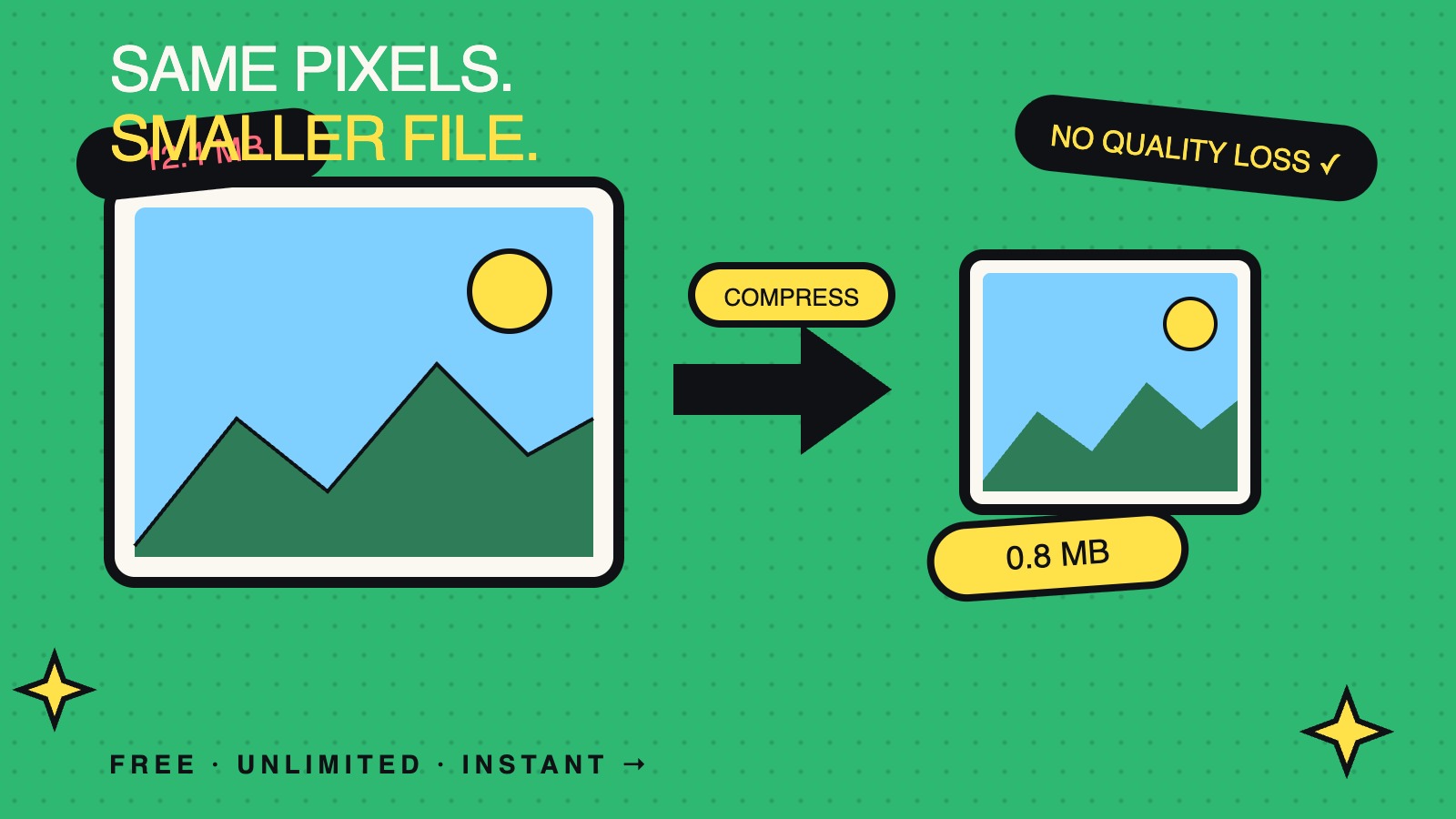

If you've ever tried to compress images without losing quality, you know the frustration: shrink the file too much and your photos look like they were faxed through a potato; shrink too little and your website crawls at dial-up speeds. The good news? You don't need expensive software like Photoshop or a degree in image processing to get this right. With the right free online tool, you can slash image file sizes by 60–80% while keeping them visually identical to the original.
In this guide, you'll learn exactly how image compression works, when to use it, and how to compress JPG and PNG files for free using Toolora's Image Compressor — no signup, no watermarks, no limits.
Why Image Compression Matters More Than Ever
Images make up roughly 50% of the average webpage's total size. That's a huge portion of your bandwidth, load time, and ultimately your bounce rate. Google's Core Web Vitals — particularly Largest Contentful Paint (LCP) — directly penalize sites with bloated images.
Here's why compressing images without losing quality should be a non-negotiable part of your workflow:
- Faster page loads: A 1-second delay can drop conversions by 7%.
- Better SEO rankings: Page speed is a confirmed Google ranking factor.
- Lower hosting costs: Less bandwidth = smaller bills.
- Improved mobile experience: Mobile users on 4G can't wait for a 5MB hero image.
- More storage room: Whether on your phone, cloud drive, or server.
The catch: most people either skip compression entirely or use aggressive settings that turn their images into pixelated messes. The sweet spot is smart compression — and that's exactly what a good tool delivers.
What Is Image Compression (Lossy vs Lossless)?
Before diving into the tool, it helps to understand the two main types of image compression:
Lossless Compression
Lossless compression reduces file size without removing any image data. When you decompress the file, it's mathematically identical to the original. PNG files use lossless compression. The trade-off is smaller savings — usually 10–30% reduction.
Lossy Compression
Lossy compression intelligently discards data the human eye barely notices, achieving dramatic file size reductions (often 70–90%). JPG is the classic lossy format. Modern algorithms are so good that you typically can't tell a 75%-quality JPG from the original at normal viewing sizes.
The key to compress images without losing visible quality is choosing the right compression level for the use case — usually somewhere between 70–85% quality for web images.
How to Use Image Compressor on Toolora
Toolora's Image Compressor is a browser-based tool that compresses images instantly using smart compression algorithms. Everything happens in your browser — your files never leave your device, which means total privacy and zero upload wait time.
Here's how to use it in under 30 seconds:
- Visit the tool at https://toolora.org/tools/image-compressor.
- Upload your image by clicking the upload area or dragging and dropping a JPG, PNG, or WebP file. You can also upload multiple images at once for batch compression.
- Adjust the quality slider (default is usually 80%). For most web use, 70–85% is the sweet spot. Watch the live preview to compare original vs compressed.
- Preview the result. Toolora shows the original size, new size, and percentage saved.
- Download the compressed image with a single click. Need multiple? Download them all as a ZIP.
That's it. No registration, no email harvesting, no watermarks. The entire process takes seconds, even for high-resolution photos.
Real-World Use Cases
1. Speeding Up Your WordPress or Shopify Site
Bloggers and store owners often upload massive 4MB+ photos straight from their phones. Running them through the compressor first can reduce them to 200–500KB with no visible quality loss — dramatically improving page speed scores.
2. Sending Photos via Email
Most email providers cap attachments at 25MB. Compressing 10 vacation photos from 6MB each down to 800KB lets you send the whole album in one email.
3. Reducing Image Size for Job Applications
Many job portals and government forms cap uploads at 1MB or even 500KB. Instead of cropping or losing detail, compress the image to fit within limits.
4. Optimizing Images for Social Media
Instagram, LinkedIn, and Twitter all re-compress your images aggressively. Uploading a pre-optimized image gives you more control over the final quality.
5. Storing More Photos on Your Phone
Bulk-compress your camera roll before backing up to free up gigabytes of cloud storage.
6. Improving Email Marketing Performance
Heavy images in newsletters often get clipped by Gmail. Compress every image before embedding to keep your emails snappy and fully visible.
Manual Compression vs Using a Free Online Tool
You actually have several options for image compression. Let's compare them honestly:
Option 1: Photoshop / Affinity Photo
- Pros: Maximum control, professional results.
- Cons: Expensive ($20+/month), steep learning curve, overkill for simple compression, slow for batch jobs.
Option 2: Command-Line Tools (ImageMagick, jpegoptim)
- Pros: Free, scriptable, powerful for developers.
- Cons: Requires technical knowledge, no preview, intimidating for non-coders.
Option 3: Desktop Apps (TinyPNG app, ImageOptim)
- Pros: Good quality, batch processing.
- Cons: Platform-locked (Mac-only or paid versions), require installation.
Option 4: Toolora's Free Online Image Compressor
- Pros: Zero installation, works on any device, instant results, browser-based privacy, batch upload, free forever.
- Cons: Requires an internet connection (though processing happens locally).
For 95% of users, a fast online tool wins. It's the right balance of speed, simplicity, and quality — exactly why tools like our Image Resizer and Image Converter are also part of most users' workflows.
Pro Tips for Best Compression Results
Want to squeeze even more performance out of your images? Apply these tips:
- Resize before you compress. If your image is 4000px wide but your blog only displays it at 800px, resize first using an image resizer. You'll save dramatic file size before compression even starts.
- Use the right format. JPG for photos, PNG for graphics with transparency, WebP for modern websites. Convert formats with an image converter when needed.
- Start at 80% quality. This is the universal sweet spot. Drop to 70% only if you need extreme savings.
- Test on real devices. Always preview compressed images on the actual screens your audience uses.
- Compress once, not repeatedly. Re-compressing already-compressed JPGs degrades them further each time. Always start from the original.
- Strip metadata. EXIF data (camera model, GPS, etc.) adds unnecessary KBs. Most tools strip this automatically.
Frequently Asked Questions
Can you really compress images without losing quality?
You can compress images with no visible quality loss — that's the realistic goal. Lossless compression preserves every pixel exactly but offers smaller savings (10–30%). Smart lossy compression at 75–85% quality typically achieves 60–80% file size reduction with differences invisible to the human eye at normal viewing distances.
What's the best free tool to compress JPG and PNG online?
Toolora's Image Compressor is one of the best free options because it's browser-based (your files stay private), supports batch uploads, has no watermarks or signup walls, and works on JPG, PNG, and WebP formats without limits.
How much can I reduce image file size?
For most JPGs, expect 60–80% reduction at 80% quality. PNGs vary widely — simple graphics can shrink by 70%+, while complex images may only shrink 20–30%. Converting PNG to WebP often achieves 25–35% additional savings on top of standard compression.
Will compressing images hurt my SEO?
The opposite — properly compressed images boost SEO. Google rewards faster pages, and image weight is one of the biggest factors in load time. Just make sure compressed images still look sharp on retina screens, and always include descriptive alt text.
Is it safe to upload images to an online compressor?
With Toolora, yes — image compression happens entirely in your browser, meaning your files are never uploaded to a server. This is faster and more private than tools that process images server-side. Always check a tool's privacy policy before uploading sensitive images.
What's the difference between compression and resizing?
Resizing changes the image's pixel dimensions (e.g., 4000×3000 → 1200×900). Compression reduces file size by encoding the same pixels more efficiently. For maximum savings, resize first, then compress — both can be done quickly with Toolora's free tools.
Start Compressing Smarter Today
Bloated images are silently killing your website speed, your email deliverability, and your storage space. The fix is simple, free, and takes less than a minute per image — and it doesn't require sacrificing quality.
Ready to compress images without losing quality? Head over to Toolora's free Image Compressor and shrink your first image right now. No signup, no watermark, no limits — just faster, lighter, web-ready images in seconds.
Your visitors (and your Core Web Vitals score) will thank you.