Image to Text Converter Online — Free OCR Tool
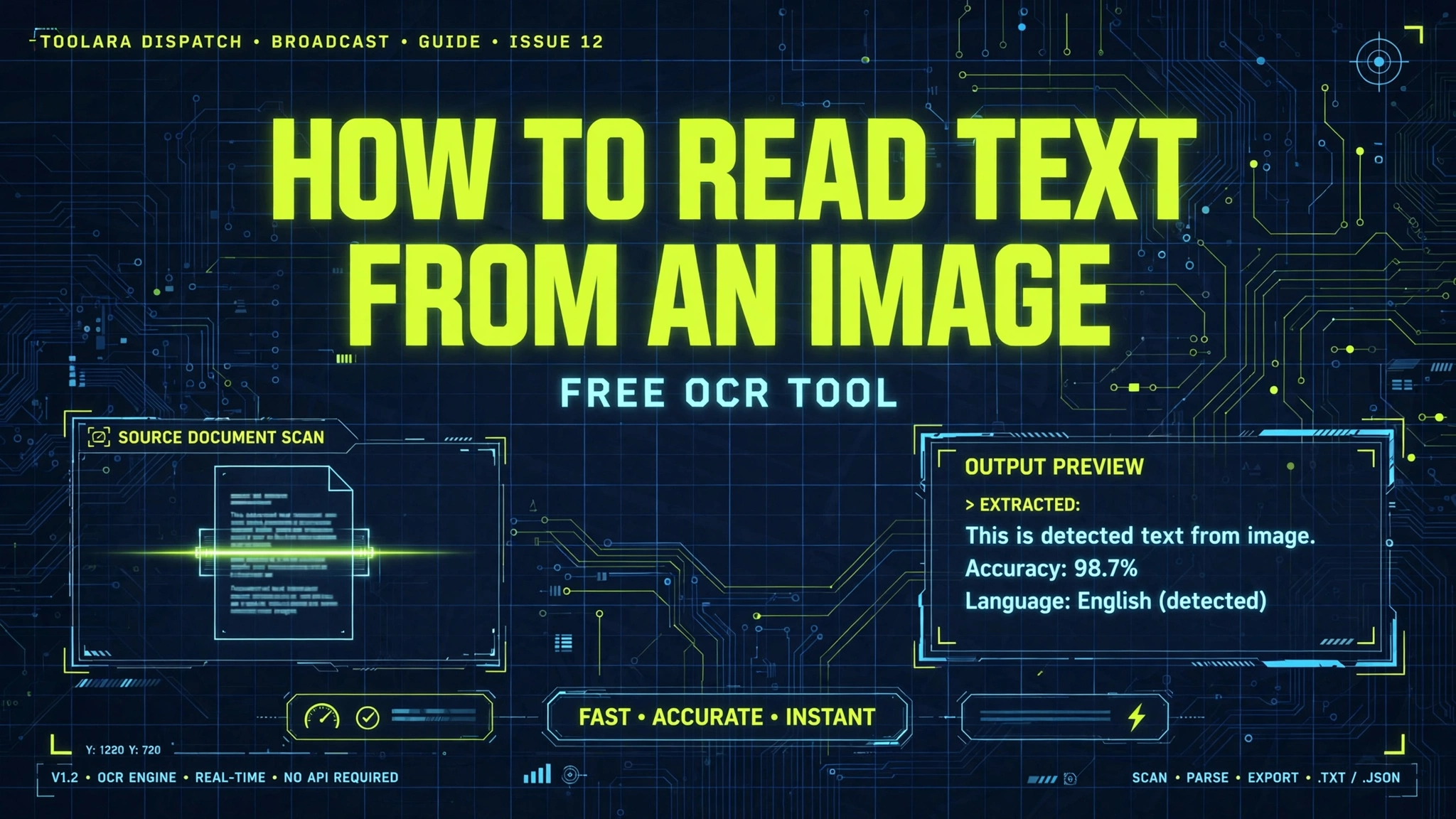
Need to pull words out of a screenshot, scanned document, or photo? An image to text converter online uses OCR (Optical Character Recognition) technology to scan and extract written or printed text from image files like JPG, PNG, or PDF. Simply upload your image to a free OCR tool, and it instantly converts the visual text into editable, copyable content. No software installation or technical skills are required.
Whether you're a student digitizing handwritten notes, a professional copying data from a scanned contract, or a researcher archiving old documents, the ability to extract text from image files saves hours of manual retyping. In this guide, you'll learn how OCR works, when to use it, and how to get perfect results every time.
Image to Text Converter Online: What It Is and How OCR Technology Works
An image to text converter online is a web-based application powered by Optical Character Recognition (OCR) — a technology that "reads" images the way humans read a book. When you upload a picture containing text, the OCR engine analyzes each pixel, identifies letter shapes, and reconstructs them into machine-readable characters.
Here's a simplified breakdown of how modern OCR software works:
- Image preprocessing — The tool sharpens the image, removes noise, and corrects skew or rotation.
- Text detection — Algorithms locate blocks, lines, and words within the image.
- Character recognition — Each shape is matched against known letter patterns using AI and neural networks.
- Post-processing — Dictionaries and language models correct typos and refine the output.
- Output generation — The extracted text is displayed as editable, copyable content.
Today's best online OCR software free tools use deep learning models trained on millions of documents. That means they can accurately handle multiple languages, complex layouts, handwritten notes, and even low-quality scans. Toolora's image to text converter supports over 100 languages and returns results in seconds — no downloads, no accounts, no watermarks.
Why You Need a Free OCR Tool to Extract Text From Images
Manually retyping text from an image is slow, error-prone, and downright frustrating. A free OCR tool online eliminates that pain and unlocks dozens of practical use cases across industries:
- Students can convert lecture slides, textbook pages, or whiteboard photos into study notes.
- Business professionals digitize invoices, receipts, business cards, and contracts.
- Researchers transcribe archival documents, journals, and old books.
- Developers extract code snippets from tutorial screenshots.
- Content creators grab quotes from images, memes, or PDFs for editing.
- Legal teams convert scanned agreements into searchable, editable formats.
- Translators extract source text from foreign-language images before translating.
The benefits go far beyond convenience:
- ⏱️ Saves time — What takes 20 minutes of typing can be done in 5 seconds.
- ✅ Reduces errors — No typos from tired fingers.
- 🔍 Makes text searchable — Extracted text can be indexed, searched, and edited.
- ♿ Improves accessibility — Screen readers can now read the content aloud.
- 💰 Cuts costs — No need to buy expensive desktop OCR software.
When you can copy text from image online in one click, entire workflows become faster and smoother.
Free OCR vs. Paid OCR Software: Which Should You Choose?
| Feature | Free Online OCR (Toolora) | Paid OCR Software |
|---|---|---|
| Cost | 100% free | $50–$500+ per license |
| Installation | None — browser based | Download & install |
| File Support | JPG, PNG, PDF, BMP, GIF | Varies |
| Language Support | 100+ languages | 50–200 languages |
| Accuracy | 95–99% on clean images | 97–99.5% |
| Batch Processing | Limited | Yes |
| Privacy | Files auto-deleted | Local processing |
| Best For | Quick tasks, students, everyday use | Enterprises, high-volume scanning |
For most users, a free OCR tool online is more than sufficient — especially when it delivers professional-grade accuracy without a subscription.
How to Convert an Image to Text Online in 3 Simple Steps
Using an image to text converter online couldn't be easier. Here's how to scan image to text free in under a minute using Toolora:
Step 1: Upload Your Image
Visit the Toolora image to text tool and click the upload button. You can also drag and drop your file directly onto the page. Supported formats include JPG, JPEG, PNG, BMP, GIF, TIFF, and PDF. Files up to 10 MB are processed instantly.
Step 2: Let the OCR Engine Process the File
Once uploaded, the OCR engine automatically:
- Detects the language of the text
- Analyzes the image layout
- Extracts characters, words, and paragraphs
- Preserves basic formatting (line breaks, spacing)
Processing typically takes 2–10 seconds, depending on image size and complexity.
Step 3: Copy, Download, or Edit Your Text
Your extracted text appears in a text box on the same page. From there you can:
- Copy it to your clipboard with one click
- Download it as a
.txtor.docxfile - Edit it directly in the browser
- Translate it or paste it into another application
That's it — no signup, no watermark, no waiting.
Tips and Best Practices for Getting Accurate OCR Results
While modern OCR is incredibly powerful, image quality still matters. Follow these tips to get the cleanest possible extraction when you convert photo to text online:
- Use high-resolution images — Aim for at least 300 DPI for scanned documents. Blurry or pixelated images produce garbled results.
- Ensure good lighting — When taking photos, avoid shadows, glare, and dim environments. Natural daylight works best.
- Hold the camera straight — Skewed or tilted images confuse the OCR engine. Shoot from directly above the page.
- Crop unnecessary background — Remove clutter around the text so the algorithm focuses on what matters.
- Choose readable fonts — Standard print fonts (Arial, Times New Roman, Helvetica) are recognized more accurately than decorative or handwritten scripts.
- Avoid heavy compression — Highly compressed JPEGs lose detail. Prefer PNG for screenshots.
- Increase contrast — Black text on a white background yields the best results. Faded documents may need pre-enhancement.
- Use single-column layouts when possible — Complex multi-column layouts (like newspapers) may require manual cleanup.
Common Image Types and Their OCR Success Rate
- Screenshots of digital text → 99% accuracy
- Clean printed documents → 97–99% accuracy
- Well-lit photos of books → 90–95% accuracy
- Faded receipts or old papers → 70–85% accuracy
- Neat handwriting → 60–80% accuracy
- Cursive or messy handwriting → 40–60% accuracy
If you often need to work with images and text, you might also find these tools useful: PDF to Word converter, image compressor, and image converter.
Frequently Asked Questions
What image formats does an online image to text converter support?
Most online OCR software free tools, including Toolora, support all popular image formats. The most commonly accepted files are:
- JPG / JPEG — The default format for photos and camera captures
- PNG — Perfect for screenshots because it preserves sharp text
- BMP — An uncompressed format used in older scans
- GIF — Supported for single-frame images
- TIFF — Ideal for high-quality scanned documents
- PDF — Both image-based and text-based PDFs are handled
If your file is in a rarely used format, convert it to JPG or PNG first. Toolora's image converter can help you switch formats before OCR processing.
Is it safe to upload documents to a free OCR tool online?
Yes — as long as you choose a reputable service. At Toolora, we take privacy seriously:
- All uploads are encrypted using HTTPS/SSL during transfer.
- Files are automatically deleted from our servers within a short time after processing.
- We never share, sell, or store your content permanently.
- No account is required, so you don't need to hand over personal information.
That said, for highly sensitive documents (medical records, legal contracts, government IDs), consider using offline OCR tools or removing sensitive fields before uploading. This is a good rule for any online service, not just OCR.
Why is my OCR result showing incorrect or garbled text?
Garbled OCR output usually stems from one or more of the following issues:
- Low image resolution — Try uploading a higher-quality version.
- Poor lighting or shadows — Retake the photo in even daylight.
- Tilted or rotated image — Straighten the image before uploading.
- Unusual fonts or handwriting — Decorative fonts and cursive script are notoriously hard for OCR.
- Wrong language setting — Ensure the OCR tool is set to the correct language.
- Heavy compression artifacts — Use PNG instead of low-quality JPEG.
- Overlapping text and graphics — Watermarks or backgrounds interfere with detection.
If you've addressed these factors and still get poor results, try preprocessing the image: convert it to grayscale, boost contrast, and remove noise using a photo editor before running it through the image to text converter online again.
Can I extract text from a scanned PDF using an image to text converter online?
Absolutely. Scanned PDFs are essentially image-based documents wrapped in a PDF container. A quality free OCR tool online will:
- Extract each page as an image
- Run OCR on every page individually
- Combine the results into a single text output
Toolora's image to text converter handles multi-page PDFs seamlessly. Once you have the extracted text, you can convert it into a fully editable Word document using our PDF to Word tool or copy it directly into your favorite editor.
For very large PDFs (50+ pages), consider splitting them into smaller chunks first for faster processing.
Start Extracting Text From Images in Seconds
Stop wasting hours retyping text from photos, screenshots, and scanned documents. With Toolora's image to text converter online, you can extract, edit, and repurpose any content in seconds — completely free, no signup required, and with military-grade privacy protection.
👉 Try Toolora's free OCR tool now and see how quickly you can turn any image into editable text. Upload your first file, hit convert, and experience the power of modern OCR technology today.