PNG vs JPG vs WebP: Which Image Format to Use?
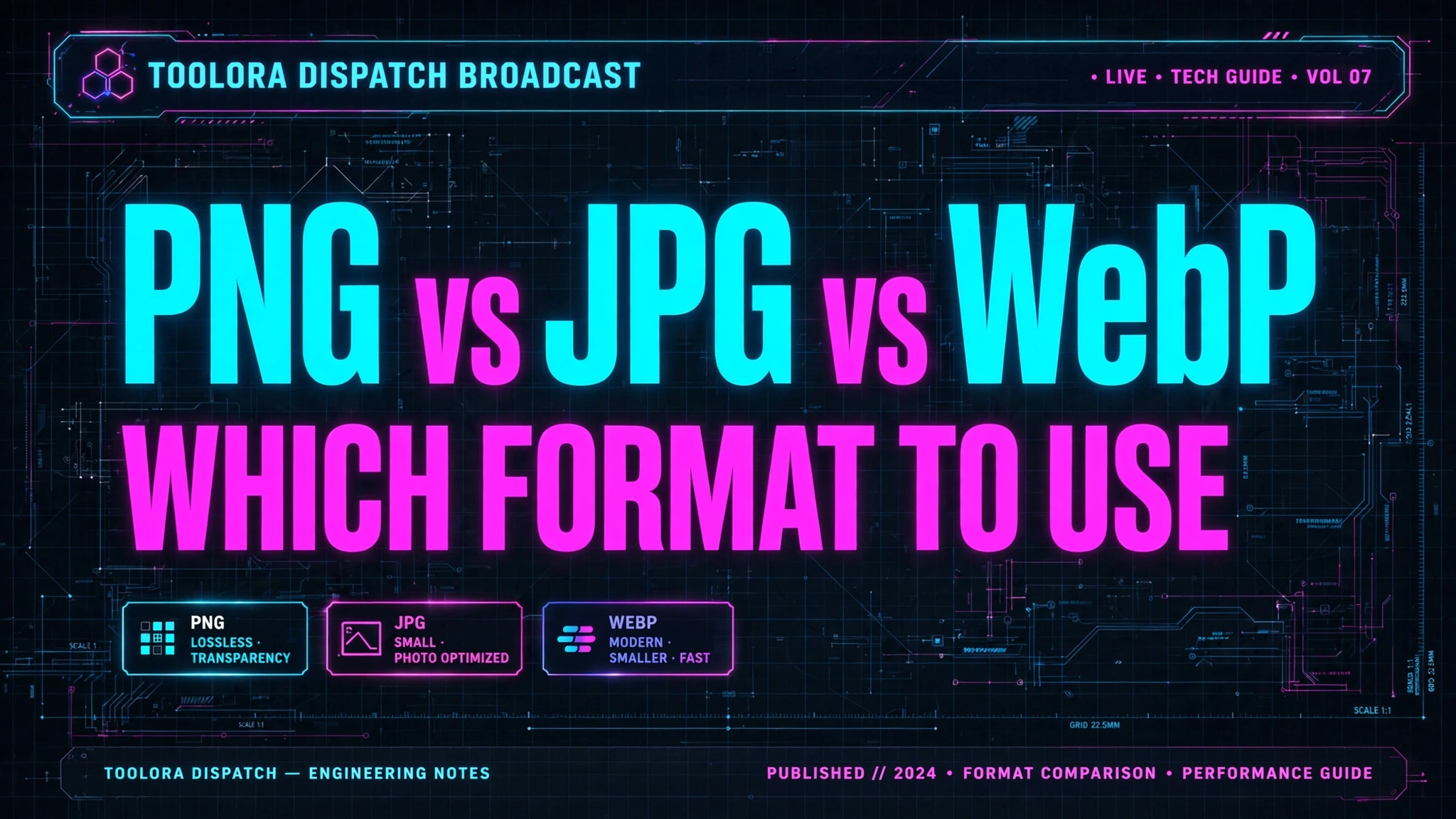
Choosing the right image format can make or break your website's performance, visual quality, and user experience. With PNG, JPG, and WebP dominating the web, understanding their differences is essential for designers, developers, and content creators alike.
PNG, JPG, and WebP each serve different purposes: PNG is best for images requiring transparency or sharp edges, JPG excels at compressing photographs with minimal visible quality loss, and WebP offers the best of both worlds with superior compression and transparency support. Choosing the right format depends on your image type, quality requirements, and target browser compatibility.
PNG vs JPG vs WebP: Key Differences Explained
Before diving into which format to use, let's break down what makes each format unique. The png vs jpg quality difference isn't just about file size — it's about how each format handles compression, color depth, and transparency.
PNG (Portable Network Graphics) uses lossless compression, meaning no image data is discarded during compression. This preserves every pixel exactly as the original, making PNG ideal for graphics with sharp edges, text overlays, and transparent backgrounds. However, PNG files tend to be significantly larger than other formats.
JPG (or JPEG) uses lossy compression, which selectively removes image data to drastically reduce file size. This trade-off works exceptionally well for photographs and complex images where subtle quality loss is virtually invisible to the human eye. The downside? JPG does not support transparency.
WebP, developed by Google in 2010, combines the best features of PNG and JPG. It supports both lossy and lossless compression, transparency (alpha channel), and animation — all while delivering 25–35% smaller file sizes compared to comparable JPG or PNG files.
Here's a side-by-side image format comparison web performance breakdown:
| Feature | PNG | JPG | WebP |
|---|---|---|---|
| Compression Type | Lossless | Lossy | Both |
| Transparency Support | ✅ Yes | ❌ No | ✅ Yes |
| Animation Support | ❌ No | ❌ No | ✅ Yes |
| Average File Size | Large | Medium | Small |
| Best For | Graphics, logos | Photos | Web optimization |
| Browser Support | Universal | Universal | 97%+ (2024) |
| Color Depth | 24-bit + alpha | 24-bit | 24-bit + alpha |
| SEO/Speed Impact | Slower loads | Fast | Fastest |
The numbers don't lie — WebP consistently outperforms both PNG and JPG in terms of file size while maintaining comparable or better visual quality.
When to Use PNG, JPG, or WebP for Your Project
Knowing when to use PNG vs JPG (and when WebP wins outright) depends entirely on the type of content you're working with. Here's a practical guide:
Use PNG when:
- You need transparent backgrounds (logos, icons, overlays)
- Your image contains text, line art, or sharp edges
- You're creating screenshots with UI elements
- Lossless quality is non-negotiable (medical imaging, archival)
- You're working with flat color graphics or illustrations
Use JPG when:
- You're publishing photographs or complex images
- File size matters more than perfect quality
- The image has smooth gradients and many colors
- Transparency is not required
- You need universal compatibility (email, legacy systems)
Use WebP when:
- You want the best image format for website speed
- You're optimizing for mobile users and slow connections
- You need transparency and small file sizes
- Your audience uses modern browsers (Chrome, Edge, Firefox, Safari 14+)
- You're aiming for top Core Web Vitals scores
A practical rule of thumb: use WebP as your primary format with a JPG or PNG fallback for older browsers. This delivers blazing-fast load times to most users without breaking compatibility for the rest.
How to Convert and Optimize Images Using Each Format
Converting between formats is easier than ever, and you don't need expensive software like Photoshop. With a free online tool like the Toolora Image Converter, you can convert JPG to WebP online, transform PNGs into JPGs, or batch-process entire image libraries in seconds.
Here's a step-by-step workflow to optimize your images:
- Audit your current images — Identify which files are oversized or in suboptimal formats.
- Categorize by content type — Photos, graphics with transparency, and animations need different treatment.
- Choose the right target format — Use the rules above as your guide.
- Convert using a reliable tool — Upload your file to Toolora's converter, select your target format, and download the optimized version.
- Test visual quality — Compare the converted file side-by-side with the original.
- Replace and re-upload — Update your website, ensuring file paths remain consistent.
Pro conversion tips:
- When converting JPG to WebP, expect file size reductions of 25–35% with no visible quality loss.
- Converting PNG to WebP (lossless) can shrink files by up to 26% while preserving transparency.
- Avoid converting JPG → PNG (unnecessary file size increase with no quality benefit).
- Never repeatedly re-save JPGs — each save introduces compounding compression artifacts.
If you also need to resize, crop, or compress before converting, Toolora offers dedicated tools like the Image Compressor and Image Resizer to streamline your workflow.
Image Format Tips and Best Practices for Web Performance
Selecting the right format is just the beginning. To truly maximize web performance, follow these proven optimization practices:
1. Implement responsive images with <picture> tags
Modern HTML lets you serve WebP to compatible browsers and fall back to JPG/PNG for the rest:
<picture>
  <source srcset="image.webp" type="image/webp">
  <img src="image.jpg" alt="Description">
</picture>
2. Use appropriate dimensions
- Don't serve a 3000×2000px image when it displays at 600×400px.
- Generate multiple sizes for different screen widths.
- Use the
srcsetattribute for responsive delivery.
3. Compress aggressively but smartly
- For JPG: 75–85% quality is the sweet spot.
- For WebP: 80% quality lossy matches JPG at 90%.
- For PNG: Use tools that strip metadata and optimize palettes.
4. Lazy-load below-the-fold images
Add loading="lazy" to <img> tags so images only load when scrolled into view. This dramatically reduces initial page load time.
5. Always include descriptive alt text
Beyond accessibility, alt text helps SEO and provides context when images fail to load.
6. Monitor your Core Web Vitals
Image optimization directly impacts Largest Contentful Paint (LCP) and Cumulative Layout Shift (CLS) — two ranking factors Google watches closely.
7. Consider next-gen alternatives
While WebP dominates now, formats like AVIF offer even better compression (about 20% smaller than WebP) but with more limited browser support. Keep an eye on AVIF adoption for future-proofing.
8. Use a CDN with format negotiation
Modern CDNs can automatically serve WebP to supported browsers and JPG/PNG to others, eliminating the need for manual fallback markup.
By combining the right format choice with these techniques, you can reduce page weight by 50% or more — leading to faster loads, better SEO, and happier users.
Frequently Asked Questions
Is WebP better than PNG and JPG for websites?
In most cases, yes — WebP is the superior choice for modern websites. It delivers files 25–35% smaller than JPG and up to 26% smaller than PNG (lossless mode), while supporting transparency and animation. The only reason not to use WebP exclusively is browser compatibility for users on outdated systems (mainly Internet Explorer and older Safari versions). The recommended approach is to serve WebP as the primary format with PNG or JPG as fallbacks using the <picture> element.
Does converting JPG to WebP reduce image quality?
When done correctly, converting JPG to WebP does not produce visible quality loss — and often improves perceived quality at smaller file sizes. WebP's lossy compression algorithm is more efficient than JPG's, meaning you can achieve equal or better visual quality at 25–35% smaller file sizes. However, avoid converting low-quality JPGs to WebP and expecting improvements; you can't restore data that was already discarded. Always convert from the highest-quality source available, and use the free Toolora Image Converter with quality settings around 80% for the best balance.
Which image format has the smallest file size?
For typical web images, WebP produces the smallest file sizes among the three major formats. A photograph saved as WebP is usually 25–35% smaller than the same image as JPG and 45–80% smaller than as PNG. For even smaller files, the newer AVIF format can be 20% smaller than WebP, but its browser support is still catching up. For graphics with limited colors, optimized PNG-8 can sometimes rival WebP, but for most use cases, WebP is the file-size winner in 2024.
Can all browsers open WebP images in 2024?
WebP browser support 2024 is excellent — over 97% of global web traffic comes from browsers that support WebP. This includes Chrome, Firefox, Edge, Opera, Safari (14+), and all major mobile browsers including iOS Safari and Chrome for Android. The only notable exception is Internet Explorer, which Microsoft officially retired in 2022. For the vast majority of websites, you can safely serve WebP as your primary image format. If you still need to support legacy browsers, use the <picture> element with a JPG or PNG fallback to ensure 100% compatibility.
Ready to optimize your images and speed up your website? Stop guessing which format to use and start converting smarter. Try the free Toolora Image Converter today — convert between PNG, JPG, WebP, and more in just one click, with no signup required and no watermarks added. Your visitors (and your Core Web Vitals) will thank you.