How to Reduce PDF File Size Without Losing Quality
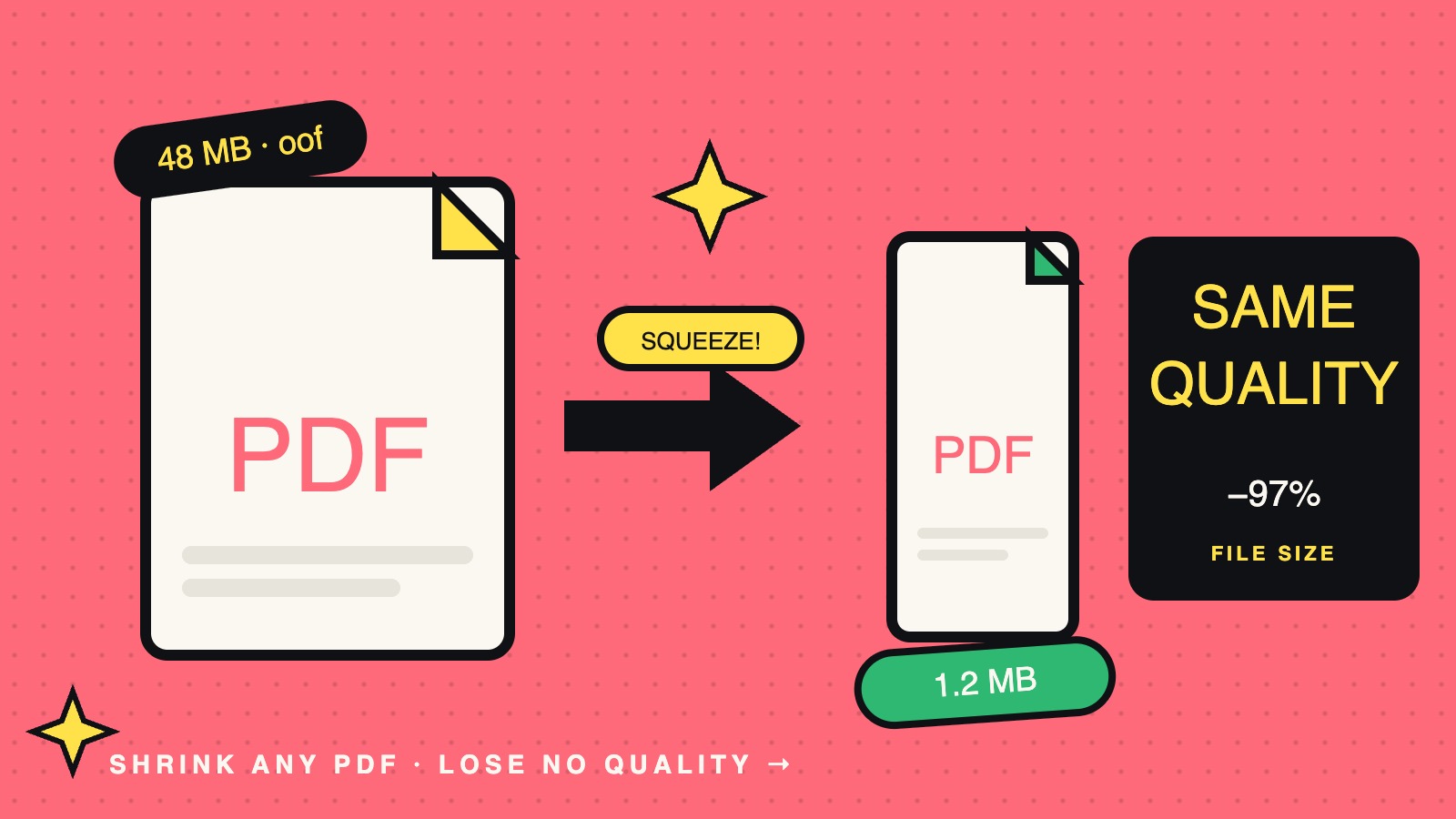
Need to compress a PDF online quickly? You can often shrink a PDF file significantly — sometimes by 50–90% — using a free browser-based tool, with no software to install, no signup required, and minimal quality loss when done correctly.
Whether you're emailing a contract that's too big to send, uploading documents to a job application portal with strict size limits, or trying to speed up your website by optimizing PDFs for the web, this guide will show you exactly how to reduce PDF file size the smart way.
Why PDF File Size Matters (And When It Becomes a Problem)
PDFs are a widely used standard for sharing documents — but they can balloon in size fast. A single scanned report can easily exceed 50 MB, and that creates real problems:
- Email attachment limits. Gmail caps attachments at 25 MB, Outlook at 20 MB, and many corporate email systems are even stricter.
- Slow uploads and downloads. Large PDFs frustrate users on mobile connections and waste bandwidth.
- Storage costs. If you manage hundreds or thousands of documents, file size adds up quickly.
- Web performance. Hosting large PDFs on your site can hurt page load speed and SEO rankings.
- Form submission limits. Government portals, university applications, and freelance platforms often reject files over 2–10 MB.
If you've ever seen the dreaded "file too large" error, you already know why a reliable, free PDF compressor can be essential.
What Actually Makes a PDF File Large?
Before you reduce PDF file size, it helps to understand what's bloating it. PDFs are containers that can hold many types of content, and some are far heavier than others:
- High-resolution images. A single 300 DPI photo can take up several megabytes. Scanned documents are often the worst offenders.
- Embedded fonts. PDFs sometimes embed entire font families even when only a few characters are used.
- Uncompressed metadata. Hidden layers, comments, form fields, and version history add up.
- Vector graphics and complex charts. Detailed illustrations and CAD drawings carry heavy data.
- Multimedia. Embedded audio, video, or 3D models inflate file size dramatically.
In many cases, images account for the majority of PDF size — which is useful, because images are also among the easiest elements to compress.
How to Compress a PDF Online — Step by Step
Here's a straightforward way to shrink a PDF using Toolora's free PDF Compressor:
Step 1: Open the Tool
Go to the PDF compressor page in your browser. It works on Windows, Mac, Linux, iOS, and Android — no app required.
Step 2: Upload Your PDF
Drag and drop your file into the upload area, or click to browse. Check the tool's privacy policy to understand how your files are handled during processing.
Step 3: Choose a Compression Level
Most tools offer multiple quality settings:
- Low compression — Best quality, smallest size reduction (good for printing)
- Medium compression — Balanced quality and size (suitable for email and general sharing)
- High compression — Maximum size reduction (suitable for web uploads where some quality trade-off is acceptable)
Step 4: Download the Compressed File
Once processing is complete, download your optimized PDF. Results vary by file content, but many users see meaningful reductions in file size.
That's it. No registration, no watermarks, no email required.
Free vs. Paid PDF Compression Tools: What You Really Need
You'll find many paid PDF compressors available, often charging $10–$30 per month. For many users, a free tool will meet their needs. Here's a practical breakdown:
A free online PDF compressor may be enough if you:
- Compress PDFs occasionally or in moderate volumes
- Don't need batch processing of large numbers of files at once
- Work with files of typical size
- Want a quick, no-friction solution
You might need paid software if you:
- Process large volumes of legal, medical, or financial documents daily
- Require advanced OCR with editable text recovery
- Need automated workflows or API integrations
- Handle sensitive files that must remain on-premises for compliance reasons
Note: For documents containing sensitive personal, financial, legal, or medical information, review the tool's privacy and data handling policies before uploading. Consider on-premises software if your situation requires it.
How to Reduce PDF Size Without Losing Quality: Practical Tips
Want to shrink a PDF while preserving quality? These techniques can help:
1. Compress Images Before Creating the PDF
If you control the source, resize images to the resolution you actually need. Web display typically requires 72–150 DPI; printing usually needs 300 DPI. Anything above that may be unnecessary.
2. Use the Right Compression Level
Don't always reach for maximum compression. For documents with text and diagrams, medium compression usually preserves visual quality while still meaningfully reducing file size.
3. Remove Unnecessary Elements
Strip out hidden layers, old form fields, comments, and metadata. Many compressors do this automatically.
4. Convert Scans to Grayscale or Black and White
If your scanned document is a contract or text-only page, converting it to grayscale or black and white can substantially reduce file size — sometimes dramatically.
5. Split Large PDFs
Sometimes the answer isn't to compress — it's to split. If a lengthy report is too large, break it into sections using a PDF splitter and share only what's needed.
6. Combine Files Smartly
Conversely, if you have many small PDFs, merging them into one optimized file can be more efficient than sending multiple separate attachments.
Common Mistakes to Avoid When Compressing PDFs
Even with good tools, these pitfalls can undermine your results:
- Compressing the same PDF multiple times. Each pass can degrade quality further. Always start from the original.
- Using maximum compression on print-bound documents. What looks acceptable on screen may be unsatisfactory in print.
- Overlooking file security. Be cautious with tools that require account creation or upload your files to remote servers if your documents contain sensitive information.
- Forgetting to keep the original. Compression can be irreversible depending on the method. Always archive the master copy before optimizing.
- Compressing already-optimized PDFs. If a file is already small, further compression may yield minimal gains and could degrade quality.
Frequently Asked Questions About PDF Compression
Is it safe to compress PDFs online?
It depends on the tool. Look for tools that process files locally in your browser, which means your documents are not uploaded to a remote server. Always review the privacy policy before uploading sensitive documents.
How much can I reduce a PDF file size?
Results vary widely depending on content. Image-heavy PDFs — such as scans, brochures, and presentations — tend to compress the most. Text-only PDFs are often already compact and may compress by a smaller margin.
Will compression reduce my PDF's quality?
It can, depending on the compression level and content. Using medium compression for general use typically preserves visual quality well. Higher compression levels on photo-heavy files may introduce visible artifacts.
Can I compress a password-protected PDF?
Most tools require you to remove the password first. You can unlock the PDF, compress it, then re-apply protection if needed.
What's a good target file size for PDFs hosted on the web?
For web hosting, aiming for files under 1–2 MB is generally a reasonable goal. Using medium-to-high compression, converting images to JPEG where appropriate, and removing unused fonts and metadata can help reduce load times.
Does compressing a PDF affect text searchability?
Standard PDF compression preserves text as text, keeping it fully searchable and selectable. Searchability would only be lost if the PDF's text were flattened into images — something most standard compressors do not do by default.
Ready to Shrink Your PDF?
Stop fighting with email size limits and slow uploads. Try Toolora's free PDF Compressor — no signup, no watermarks, and no software to install. Upload your file, choose a compression level, and download a smaller PDF in seconds.
Whether you need to email a contract, upload a portfolio, or optimize PDFs for your website, Toolora offers a straightforward compression option at no cost.